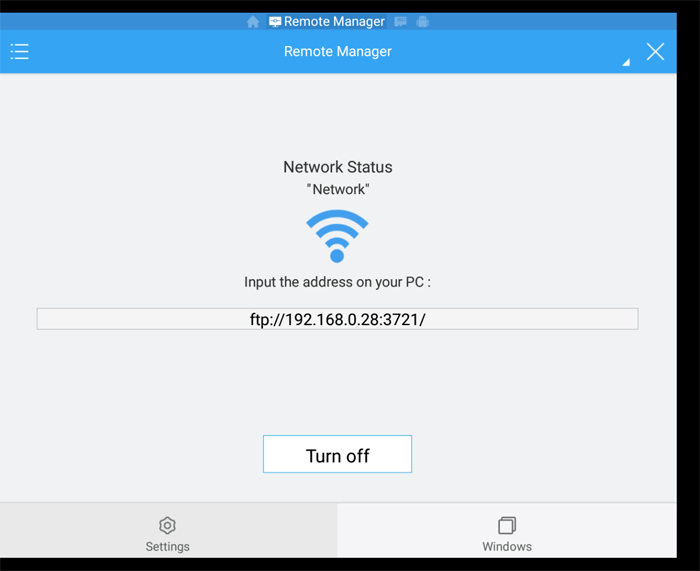
How to Wirelessly Transfer Files to the External Hard Drive on your Fire TV.
Posted February 24, 2016The number one reason I wanted to root my Fire TV is so that I could wirelessly transfer files to my external hard drive, instead of having to go behind the TV and disconnect the hard drive to sync it with a computer. Now there are many methods out there but it I'll be using a program called ES File Explorer on the Fire TV and Yummy FTP on my Mac to do this.
Step 1.
You can either install ES File Explorer on the Fire TV through the Amazon application store (it's a free program), or you can download the apk directly from the ES App Group and use adbFire to sideload the application.I'm going to try using voice search. Just press the button and say ES File Explorer.

Hey it found it. This will be faster than using adbFire. Just press the select button.
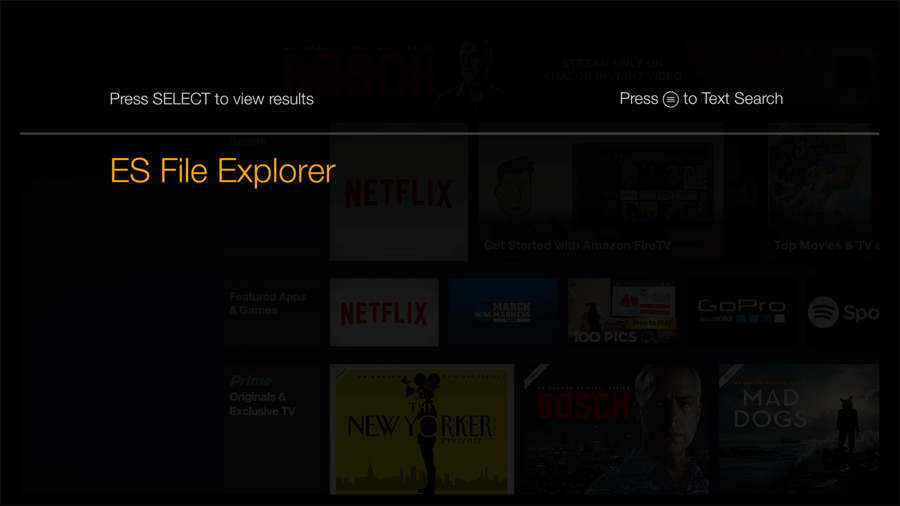
Click on ES File Explorer.
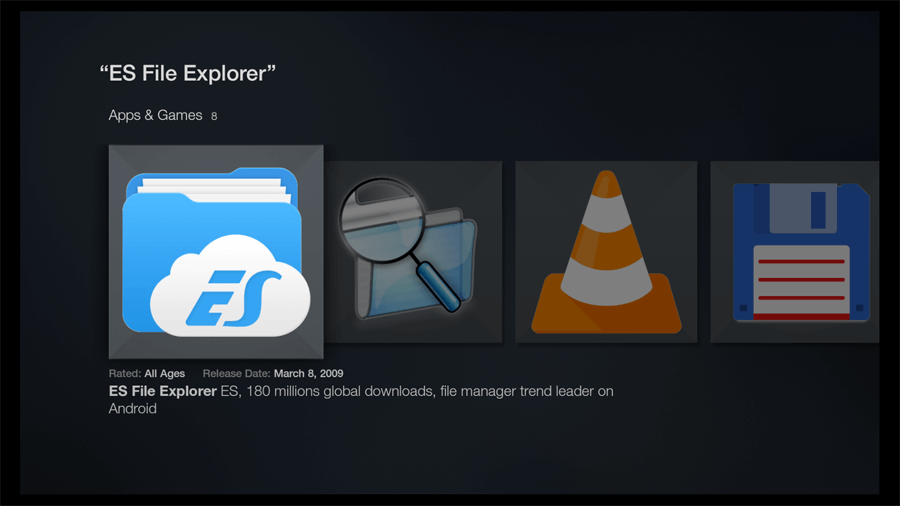
Then click Download. When it's finished installing click Open.

Step 2.
Launch ES File Explorer. Click on the Tools header on the left.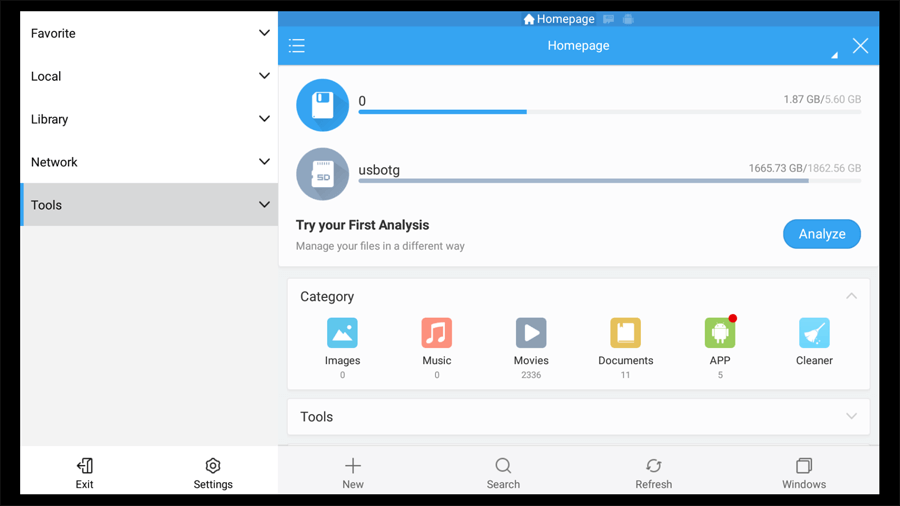
Click on Root Explorer.

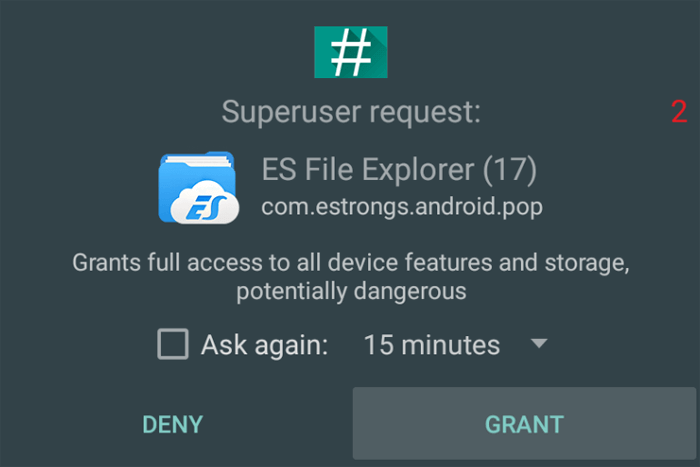
You'll be prompted to approve the Superuser request. Click GRANT.
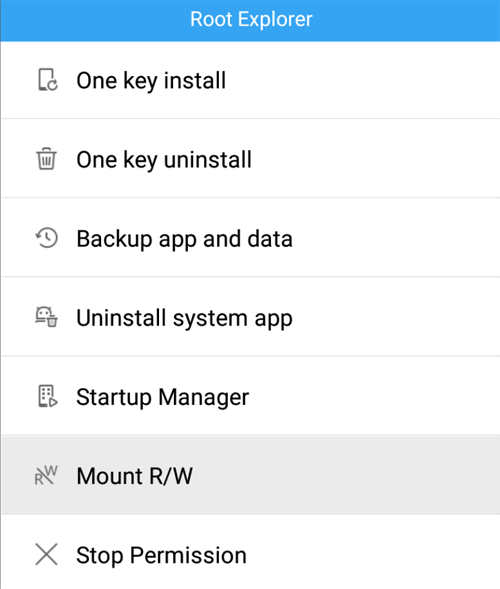
The Root Explorer slider will turn on and this screen will appear. Click on Mount R/W.
You may need a keyboard for this part because the Fire TV remote won't be able to select those radio buttons. In my case the USB drive is called /mnt/media_rw/usbotg and it was already selected RW. If your's isn't simply check the button for it. You could also set other directories as RW if you want to. Then click OK.

Step 3.
Scroll up and click on the Network header.
Click on Remote Manager.

Click the Turn on button.

Note the FTP address and port number.

Click the Settings button directly below the Turn off button.

Click on Set root directory.

Click the back arrow.

Select /storage/usbotg.

You'll see the contents of the source you selected. Click OK.

Click Set manage account.
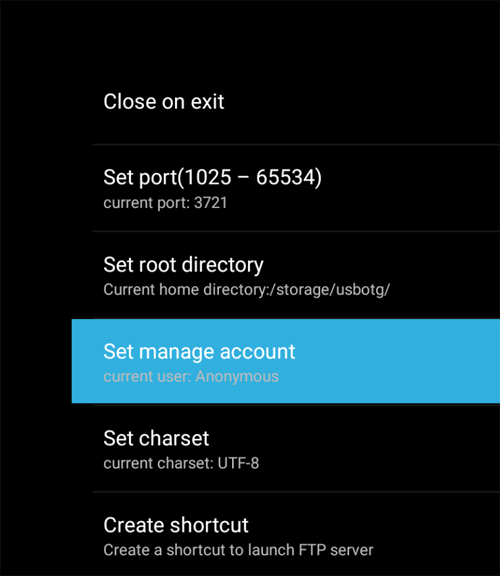
Enter a username and password and then click OK.

Keep in mind since "Close on exit" is checked by default, you must leave this program open while FTPing. It's safer this way so that you don't forget to close your connection when finished.
Step 4.
Open your favorite FTP program and create a new connection. Name the connection, enter the IP address, enter the username, enter the password, enter the port number, and select the protocol (FTP). Save this information.
Now you can upload your files wherever you'd like.

Step 5.
Back in ES File Explorer you can then click Turn off in the Remote Manager to close your FTP server.