
How to Root the Fire TV without a Computer using KingRoot, Install TWRP Custom Recovery, a Pre-Rooted ROM & Block Software Updates (Best Method).
Page 1 of 3Updated: April 6, 2016
I was blown away when I saw this tutorial at AFTV News.com! Elias has really outdone himself with what I think is the easiest method to root the Fire TV as the only things you need are the Fire TV and an Internet connection. His tutorial is pure genius and he deserves all the credit in the world for coming up with this! Thanks! Stop by his site and send him a donation to show your appreciation.
I'm posting this tutorial not to copy cat him, but to help spread this method. I just love tinkering with gadgets and explaining to others how to do it. I probably spent 12 hours trying out his method, documenting it in my own way (some slight changes, and adding blocking updates without a computer) and screenshotting everything. This is time consuming but the end result makes it worthwhile. So I took one of my already rooted 5.0.5 Fire TVs with OTA disabled, and downgraded back to 5.0.4, re-enabled OTA updates and then upgraded it back to 5.0.5 through Amazon and then rooted it all over again. I opened my own MediaFire account and I've rehosted all the files you need just because I love redundant backups. Too many times I've seen important guides, and files just disappear from the Internet...
I want to thank the coders over at KingRoot for this very simple and quick program. I also want to thank rbox (XDA Forums) for all his incredible work in creating TWRP custom recovery and the installer and the pre-rooted ROMs. A big thank you to zeroepoch (XDA Forums) for discovering the rooting method. I'm really enjoying my Amazon Fire TV with all the extra features I'm able to add to it. Thanks guys!
I also want to thank the programmers over at TinyPNG who really keep my graphics lightweight considering how massive they are. Can't beat free!
Who is this tutorial NOT for?
- Fire TV OS 5.0.5.1 (or newer).
Who is this tutorial for?
- Fire TV 2nd generation models (4k video) new out of the box, or never rooted (or even already rooted as long as you downgrade and then upgrade again) and on 5.0.4 or 5.0.5 firmware. For the purposes of this tutorial my Fire TV is stock on 5.0.5 firmware.
Prerequisites
- A USB keyboard and a mouse (ideally connected to a hub but you can hot swap these in the Fire TV). I personally have the Logitech K400 Plus. This includes a built in trackpad. Here's a K400 Plus custom neoprene sleeve to protect it.

Remote basics
Just so we're all on the same page my instructions will include pressing specific buttons on the Fire TV remote to perform certain actions. In case you never read the manual, here's a picture letting you know what all the buttons are actually called. Any time I say to go left, right, up or down you are using the Navigation ring to do this. Keep in mind at some points you will need a trackpad or a mouse to click on certain things that the Fire TV remote control can't get to on the screen.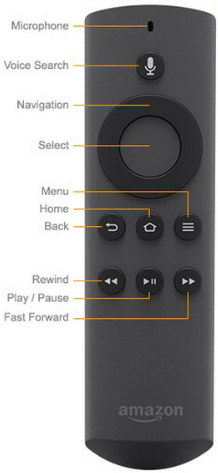
Step 1.
On the Fire TV click on Settings, System, Developer Options. Turn on Apps from Unknown Sources. You don't have to have ADB debugging on. I just use it to take my screenshots.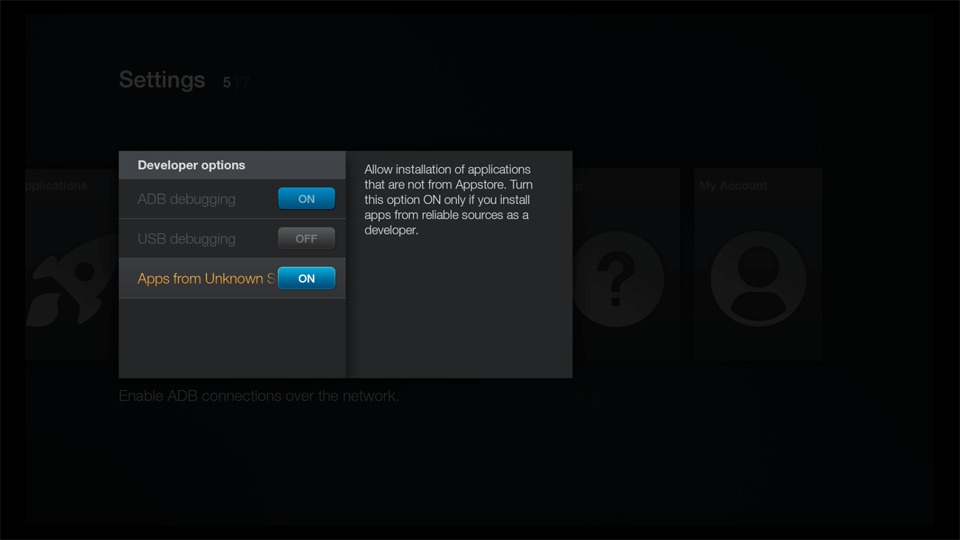
Step 2.
Use Voice Search to locate the ES File Explorer application on the Amazon app store. Then click Download. When it's finished installing click Open.
If you're prompted to update the program that's your choice. Not having this update won't prevent this tutorial from working. I did find their server painfully slow (~20 minutes to download) and chose not to update.
Click the Favorite menu at the top left and it will expand and display its contents. Click + Add.

Enter http://marksmods.com/links.html in the Path box. Then enter whatever you want for the name (this is so you can remember what it's for). Then click Add.

Back under the Favorites menu, scroll down to the bottom where the link you just saved is located. Click it.
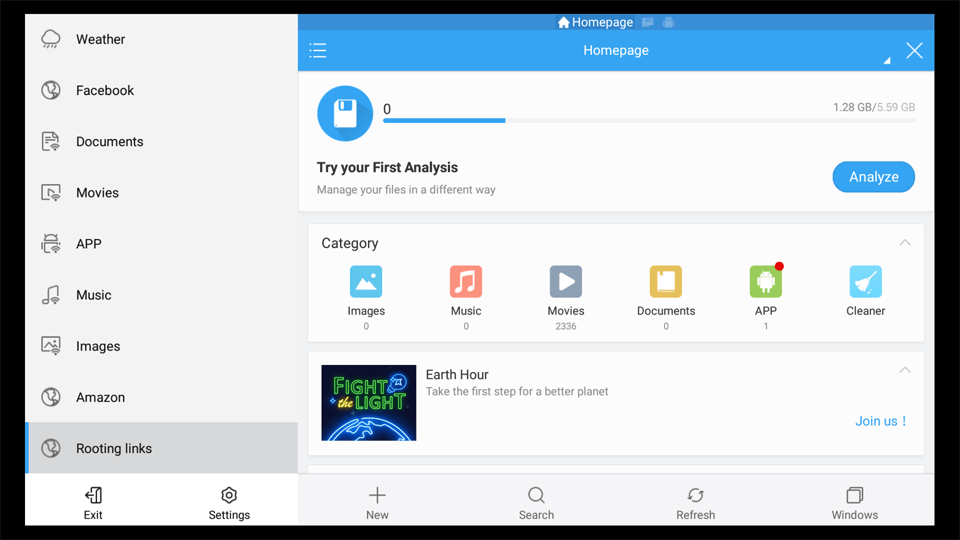
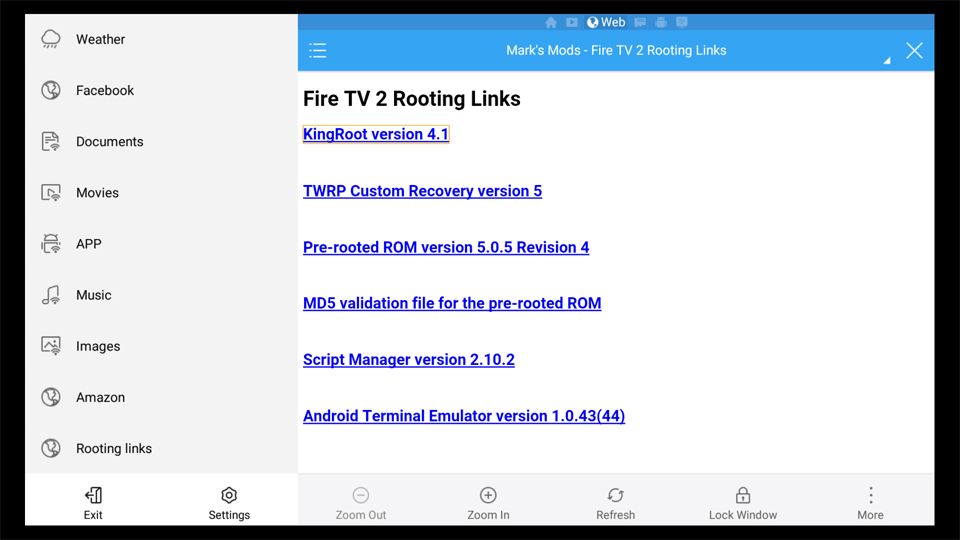
Here you'll see the list of files you'll need to root your Fire TV 2 and block software updates. Keep in mind as of the writing of this tutorial, these are the most current versions of the TWRP Custom Recovery and the Pre-Rooted ROM. I don't know that I'll maintain this list frankly until Amazon releases a 5.0.6 firmware. I'll have to see what any newer versions offer. Since you are downloading from MediaFire it could take awhile. Only one of the files is really big, the pre-rooted ROM.

If you want to be able to read the websites for these particular files to learn more about them here's some links for you to read later.
- KingRoot - XDA Forums thread
- TWRP Custom Recovery - XDA Forums thread
- Pre-Rooted ROM - XDA Forums thread
- SManager
- Android Terminal Emulator
Download all the files EXCEPT the Android Terminal Emulator. That program will get installed after our factory reset which will wipe out everything on the internal storage.
At this point you'll most likely need to use a combination of the Fire TV remote and a trackpad to click things as the Fire TV remote can't interact with everything in ES File Explorer. When you are on a link you'll see a yellow outline to know you're on it. Then just click the Select button on your remote.
Click the Download button. You can see the gray circle indicating where my trackpad is going to click.

It will say Your download is starting... Then it will say Still not downloading? At this point click the More button then select Open in browser.

The file may start downloading or you may see a pop up window. If the pop up window appears then select ES Downloader and then click the ALWAYS button. Otherwise the download will begin automatically.
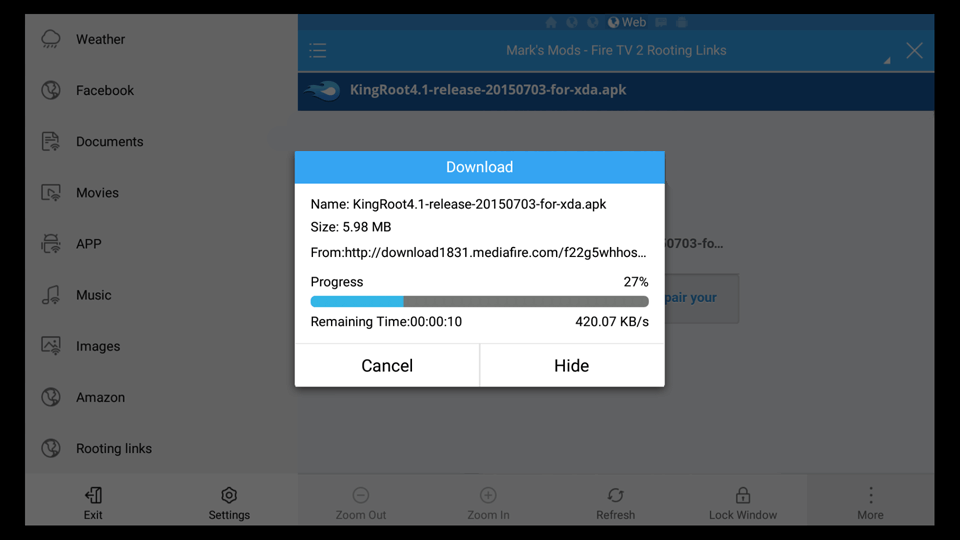
When the download has completed just click the Back button on your remote to exit.
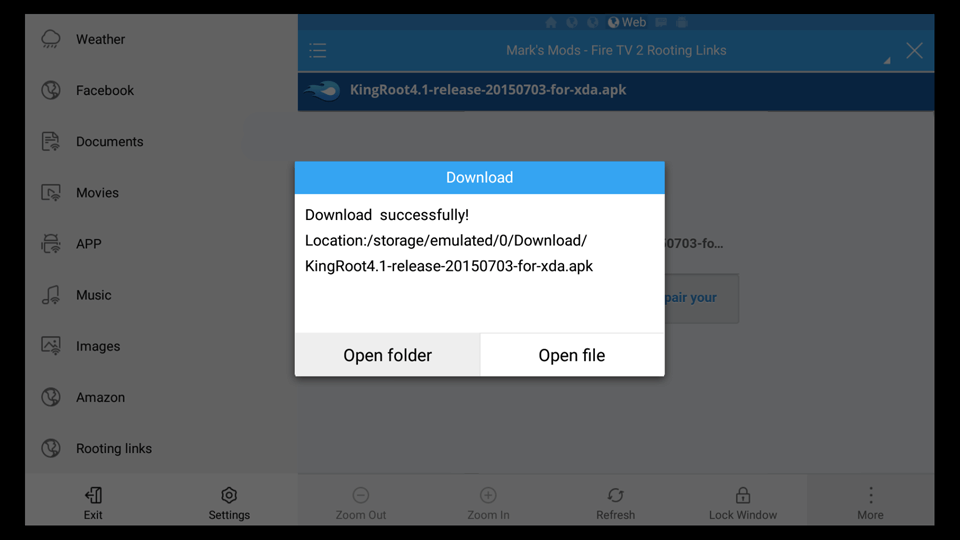
Click the Back button one more time and you'll return to my page of links.
Continue downloading the remaining files (except for the Android Terminal Emulator). When the Script Manager program has finished downloading click the Open Folder button.
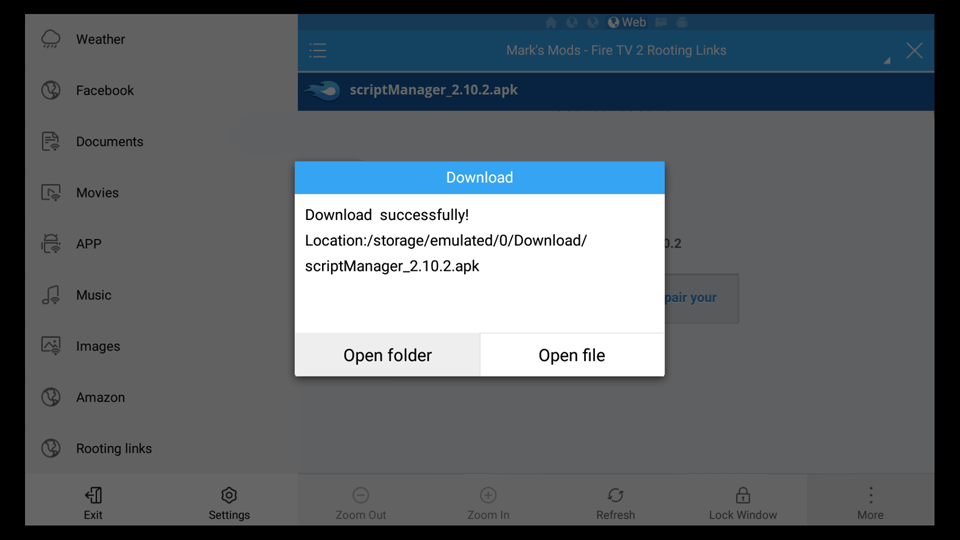
Here are the files you just downloaded.

Step 3.
Click on the Script Manager icon.
Click Install.

Click INSTALL.

Click DONE when it's finished.
